Changelog
A record of improvements, fixes, and new features shipped to the Workel platform.
November 2026
9 updates
Find a file by what's written in it, give a task its own hour on the calendar, and deal with a reminder without leaving the bell. Everything that shipped:
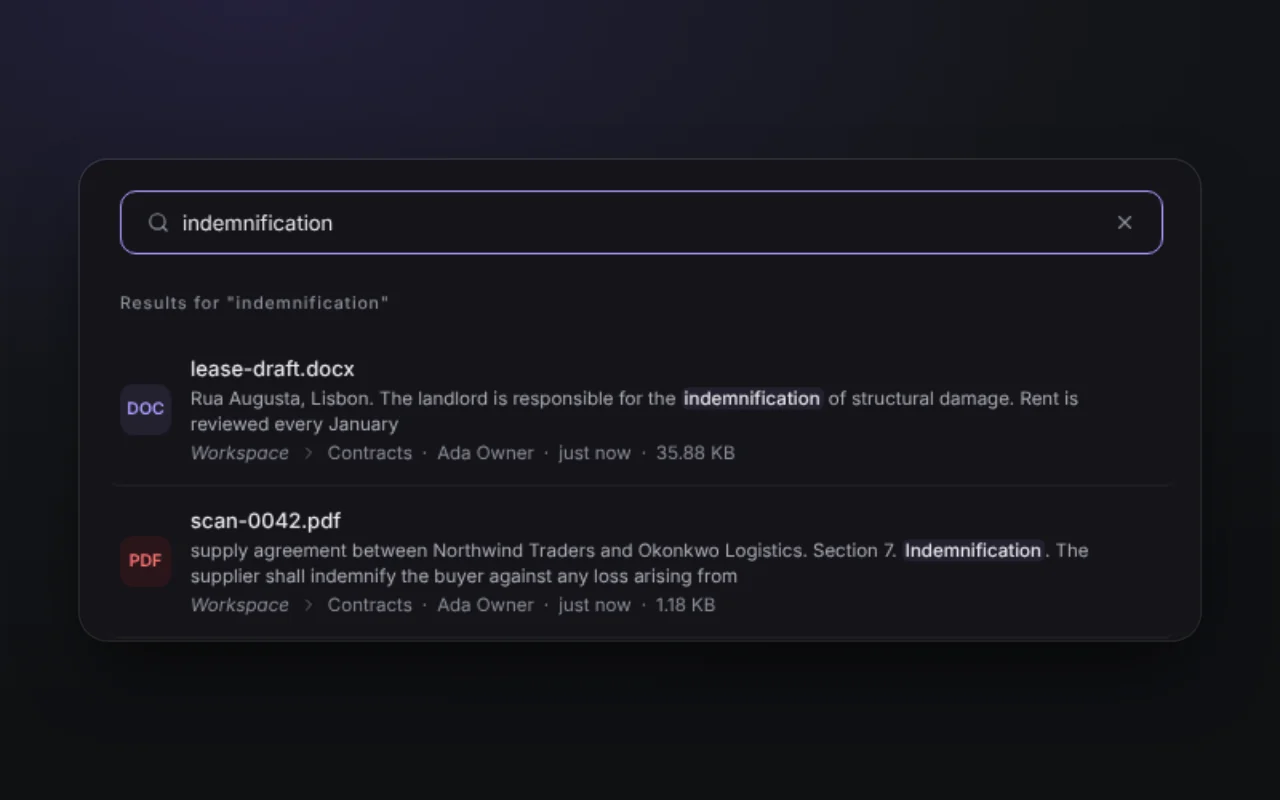
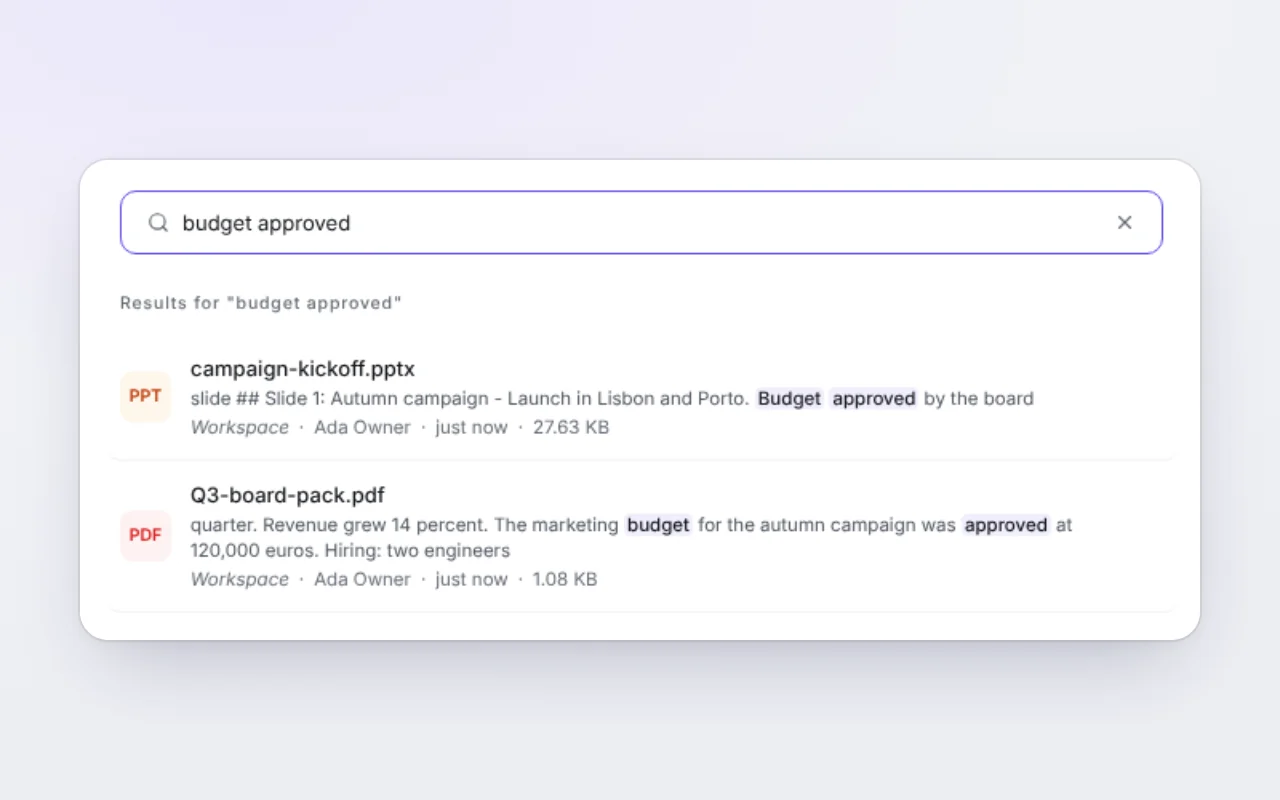
- Files search reads the words inside PDFs, Word files, slides and spreadsheets, and shows the line that matched
- Star files and folders, and find them again under Starred
- Every file shows a real thumbnail, and a long file opens with “In short”, a few sentences on what it is
- Files suggests the ones you'll probably need, such as a file named in today's meeting
- Uploading a file that's already there gives you a heads-up first, and you can drag files and folders into folders
- “What's using space” shows what fills your storage and offers a clean-up you review before anything moves
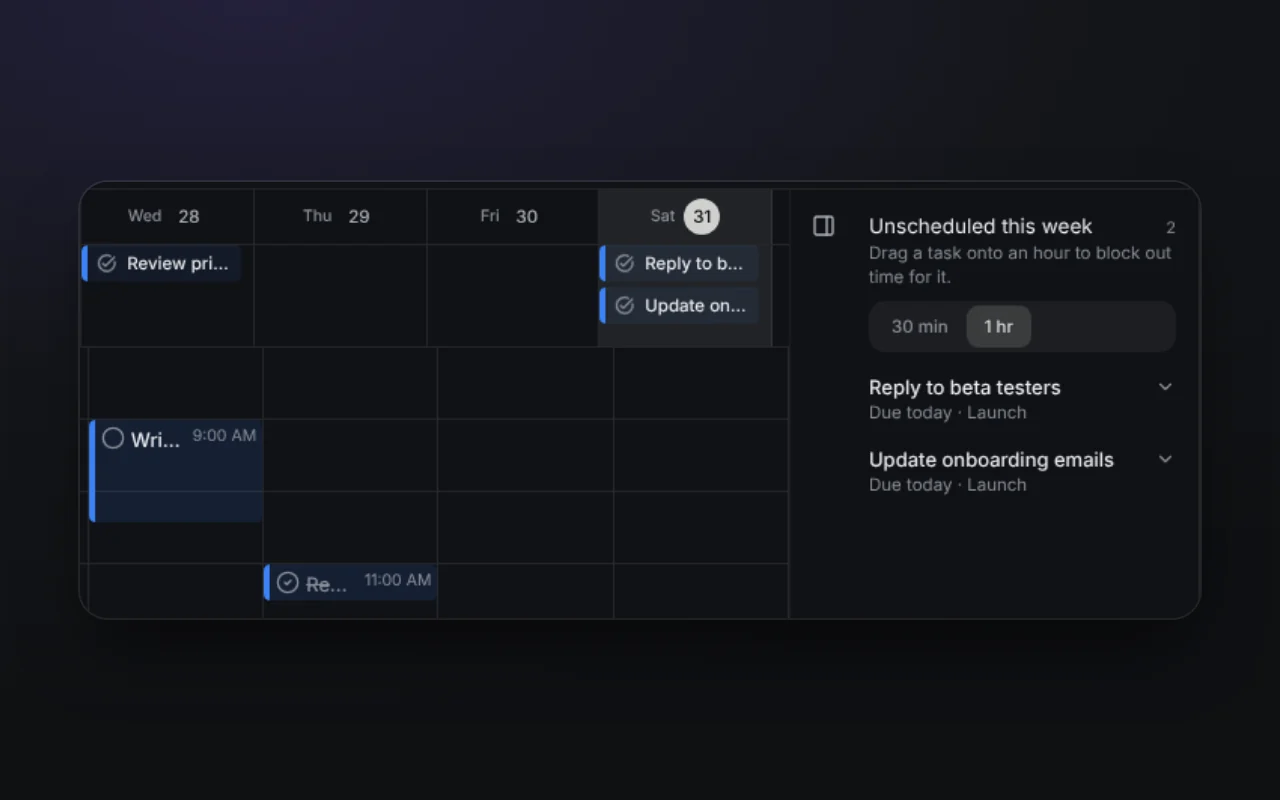
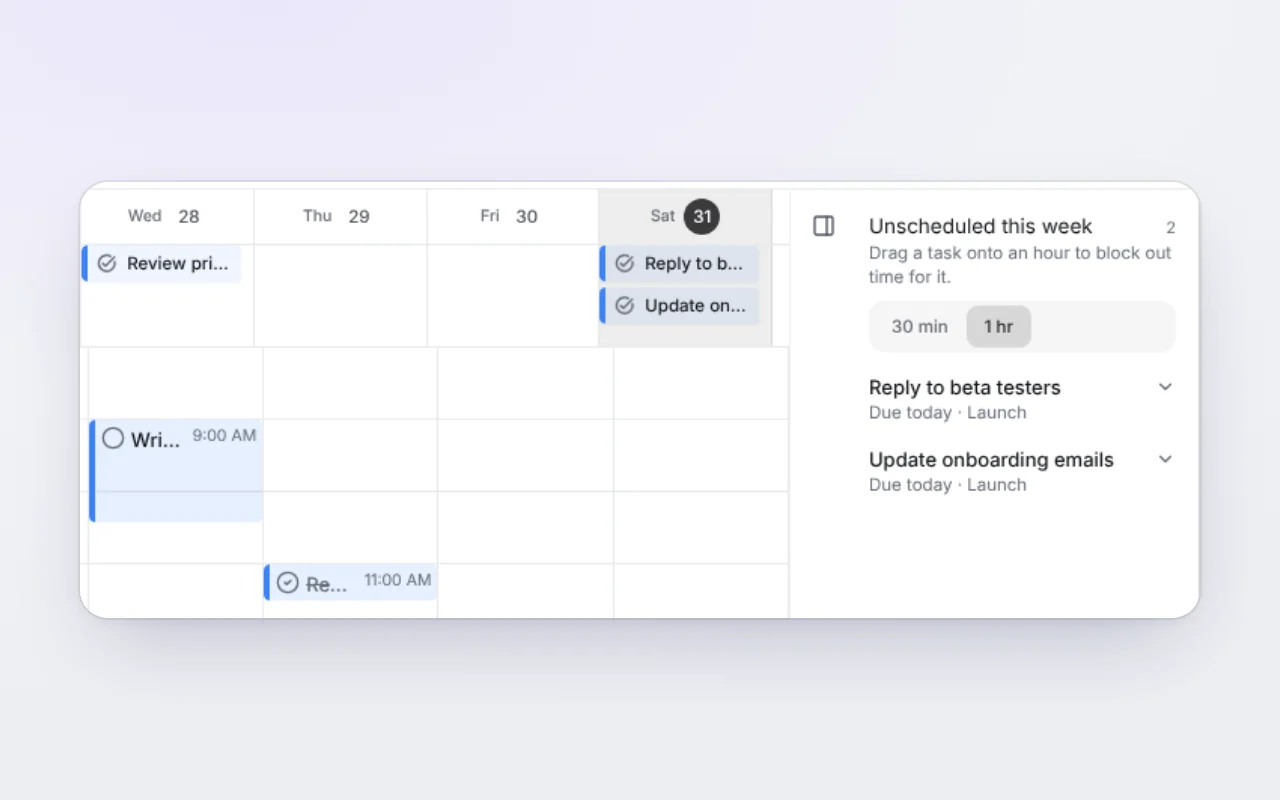
- Drag a task onto an hour in the calendar to block out time for it
- Add your Workel events to your Google Calendar, and the first Google sync brings your events in
- Repeating events keep month-end dates, can end on a day or after a number of times, and weekly repeats can pick their days
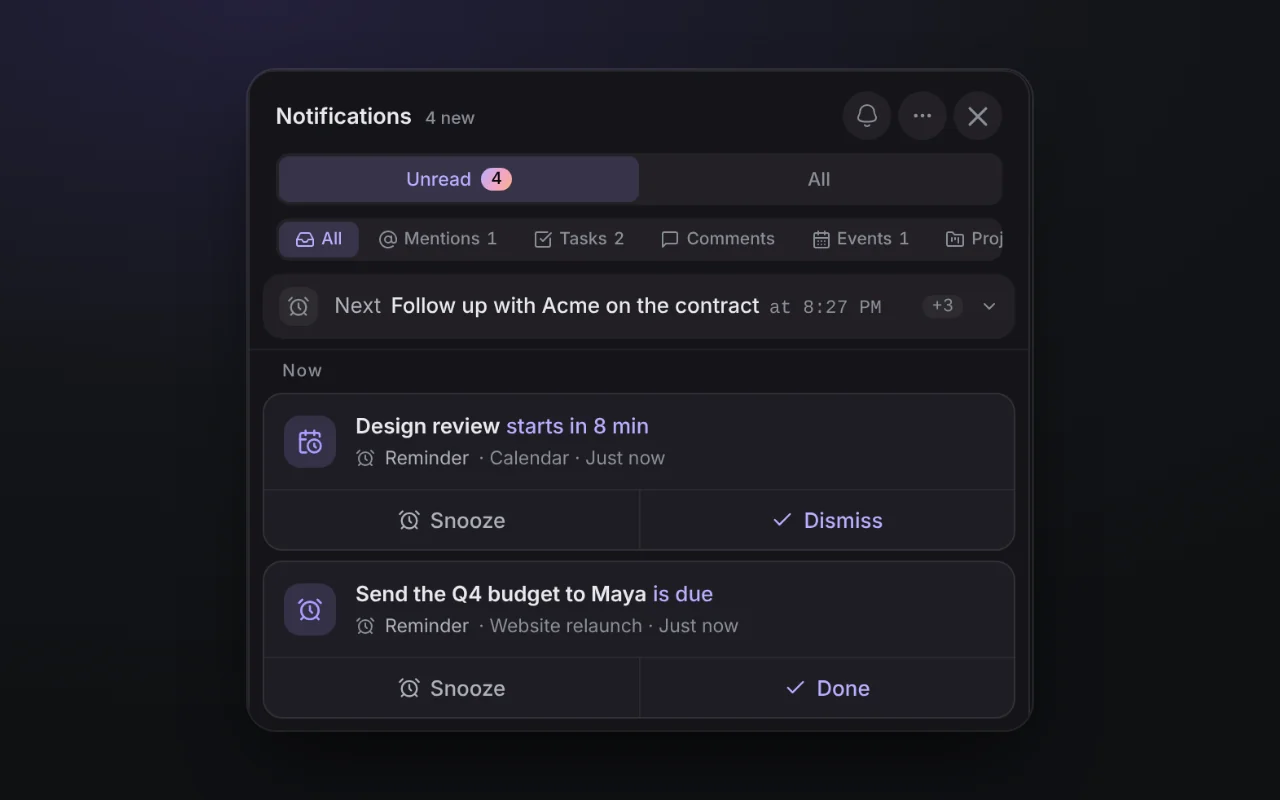
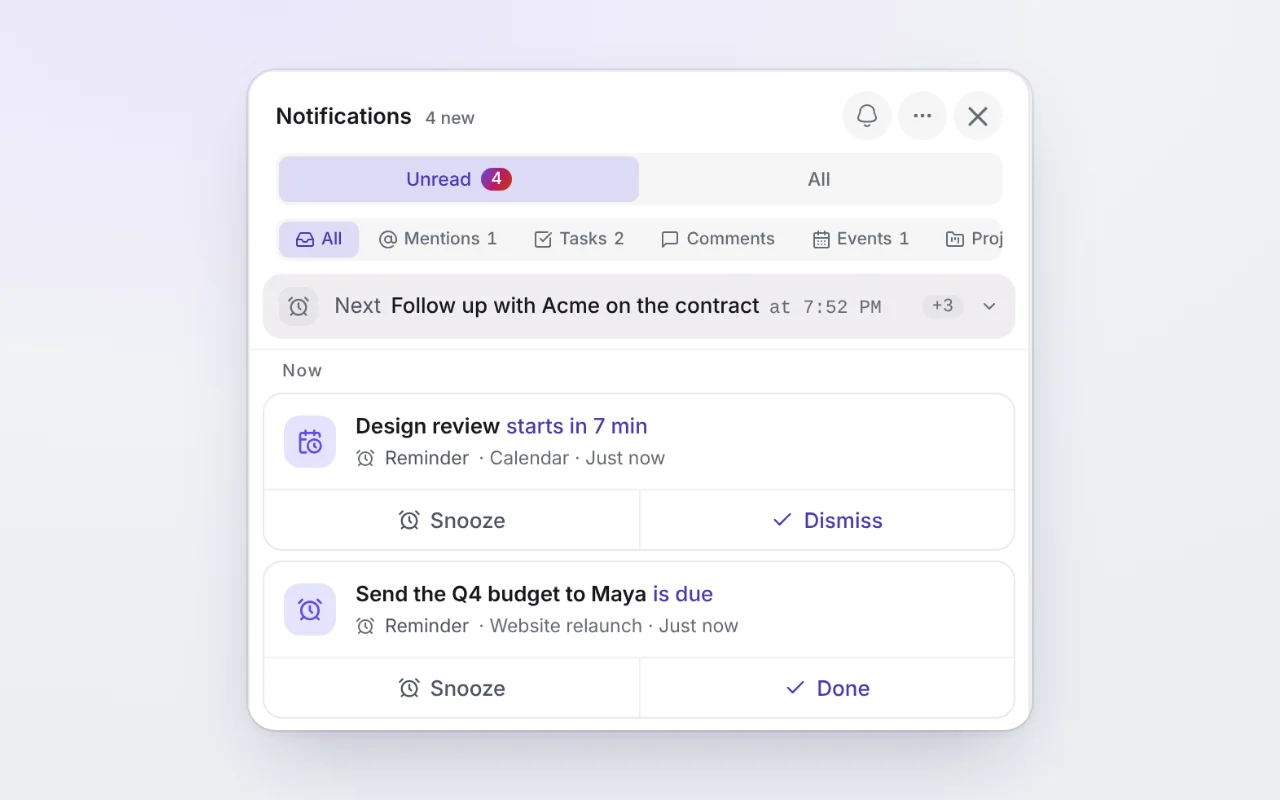
- Reminders show in the bell: the next one at the top, and Snooze or Done when one is due
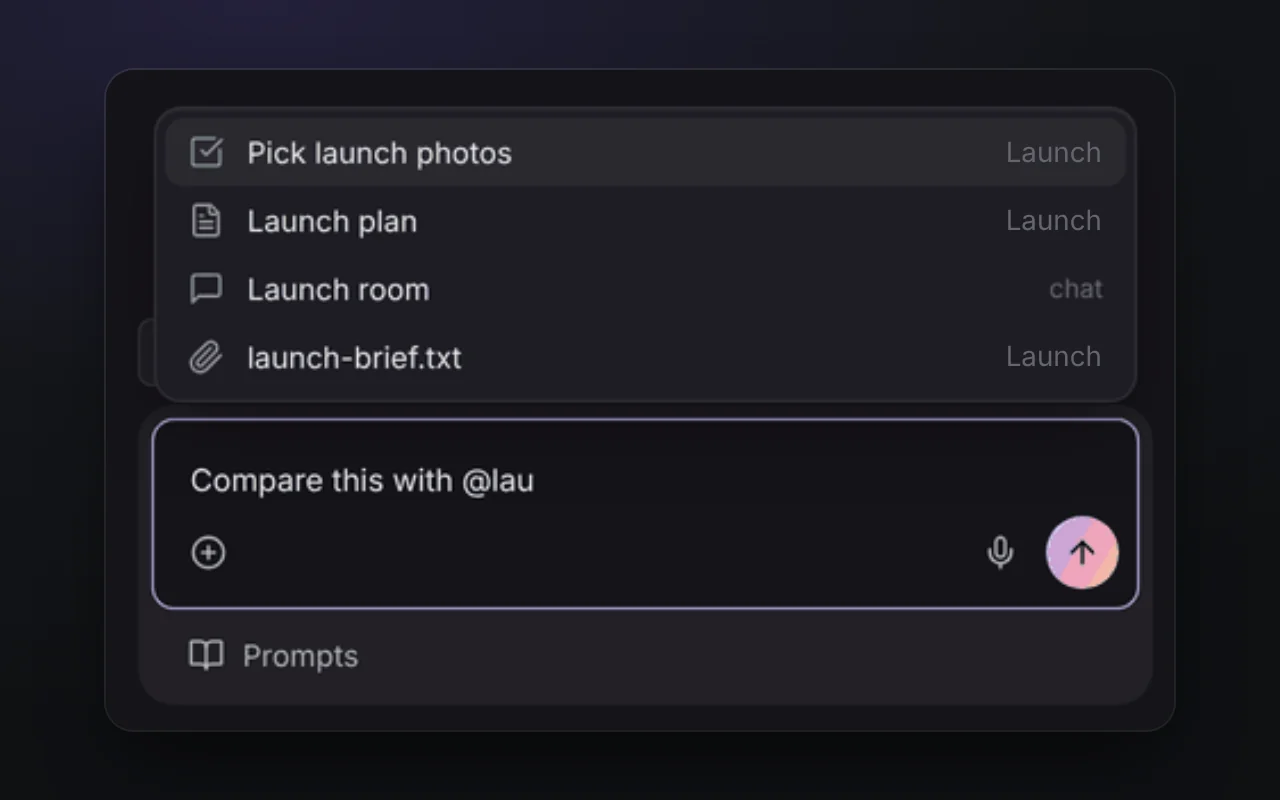
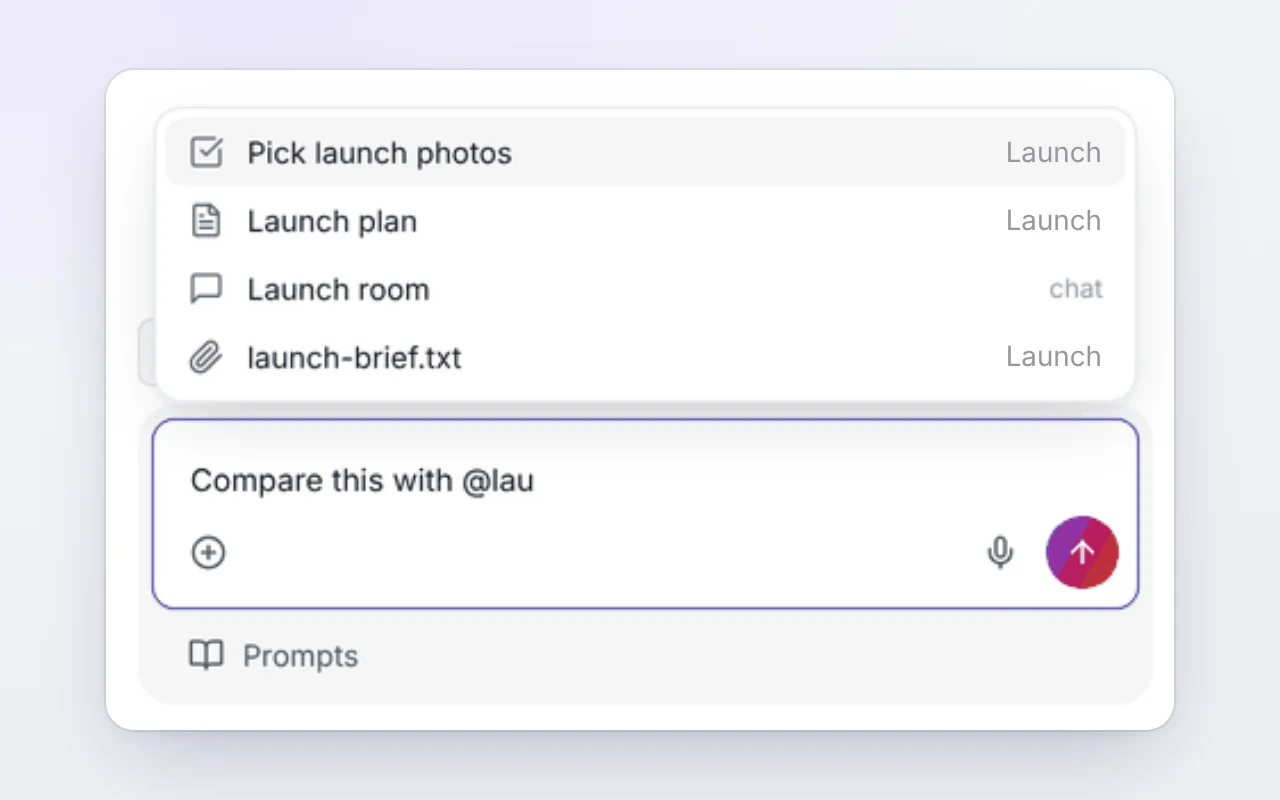
- Ask the assistant about the task, doc, file or event you have open, or type @ to point it at another
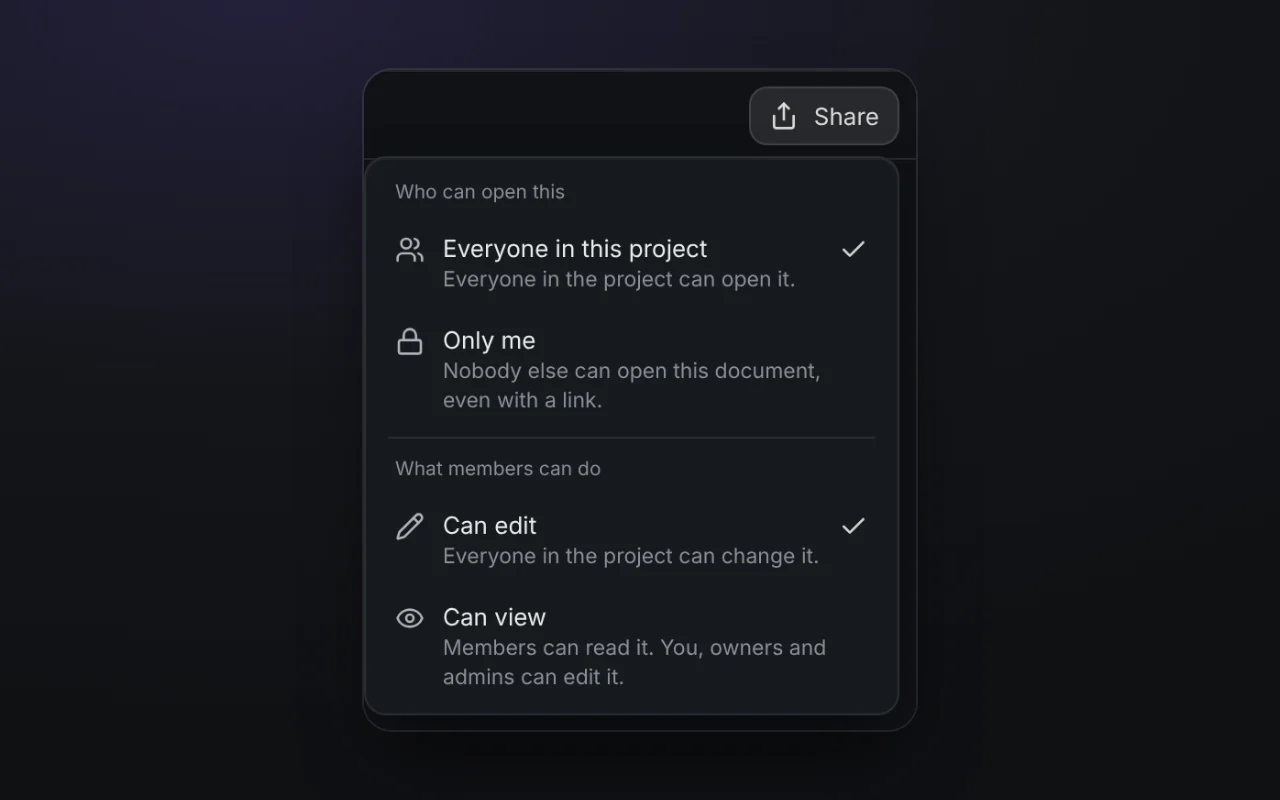
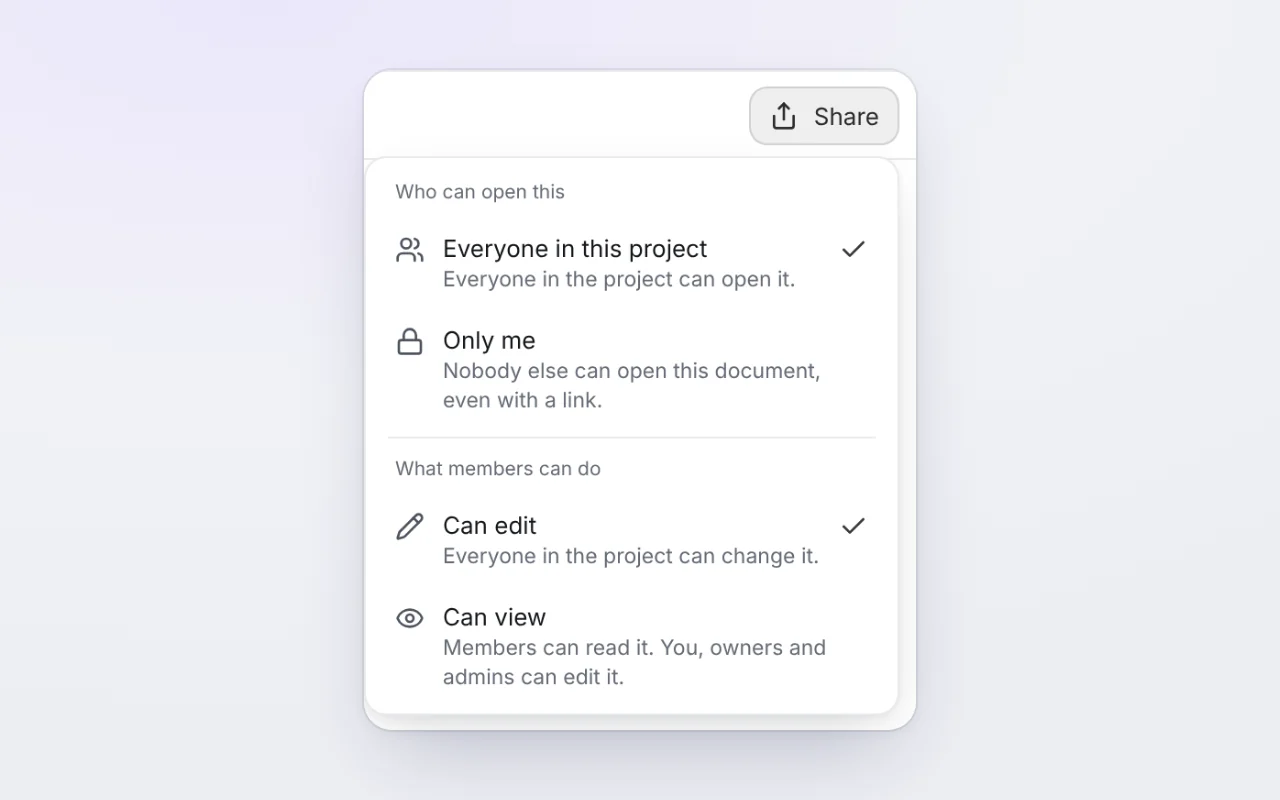
- Choose whether project members can edit a doc or only view it, from Share
- Long docs open, type and paste much faster, and edits made while you're offline are kept
- Docs search and Favorites reach every doc, and Word export keeps images, colours and links
- Choose which sounds Workel makes and hear them first, and pick Higher contrast under Theme
- New project templates: Hiring pipeline, Weekly team plan, Website redesign and Group project
- Workel in your phone's browser has layouts made for a small screen
- Calls, chat, tasks, projects, files, docs, settings and your first steps in Workel each got smoother
- Calls sit on a frosted view of the app and end with a short summary
- The sign-in and sign-up pages mark the sign-in method you used last
- Workel for Mac and Windows: “Add to Workel” from any app, add tasks while you're offline, focus on one task with a countdown, and choose the app icon
Web · Desktop · Files
Start a project from a ready-made plan, and find, share and tidy your files with far less effort. Everything that shipped:
- New project templates — Event plan, Hiring pipeline, Website redesign, Weekly team plan, Group project and School fundraiser, each with a board, dated tasks, docs and a chat
- The Weekly team plan comes with a 15-minute check-in that repeats every week
- Share a file with anyone by link, with an optional expiry date, a password and no downloads
- Search finds a file by the words inside it, in PDFs and Word, Excel and PowerPoint files, and shows the passage that matched
- Star the files and folders you keep going back to, and find them under Starred
- Open a long file and “In short” sums it up in a few sentences, with a way to ask the assistant about it
- The Files home suggests the files you'll probably need, each with a short reason
- Upload something that's already in the workspace and Workel shows you where it is, so you can keep both or open the one you have
- “What's using space” shows what fills your storage and offers a clean-up you check before anything moves
- Every file shows a real thumbnail straight away, including PDFs, videos and iPhone photos
- Each file has a history: who uploaded, renamed, moved, deleted or restored it, and when
- Double-click opens a file, the list and grid share the same actions and sorting, and big uploads keep going in one steady queue
Files · Web
Plan your week in one place: reminders you can snooze, your Workel events in Google Calendar, and time set aside for your tasks. Everything that shipped:
- Reminders show in the notification bell, and a due one sits on top with Snooze and Done
- Google Calendar works both ways: turn on “Add my Workel events to Google” and pick the calendar they go into
- Drag a task onto an hour in the calendar to block out time for it, or pick one from “Unscheduled this week”
- All-day and overnight events, including events that span several days
- Mark the days you're away, and your team sees them on the calendar
- Repeating events can end on a date or after a number of times and can repeat on the weekdays you choose, and a monthly event on the 31st stays at the end of each month
- Dragging a repeating event asks whether to move just this one or all of them, and keeps its guests
- Tick off a repeating task and it moves forward with its reminder, on its usual day
- In Today and Upcoming, type “call Ana friday 3pm” and the task lands on the right day and time; priority and repeats are understood too
- Undo right after deleting or completing a task, and a repeating task tells you when it's next due
- The Tasks page filters and searches across all your tasks, not just the ones on screen
- Choose how much each project notifies you: all activity, only mentions and your tasks, or nothing
Calendar · Tasks · Web
The assistant keeps every conversation within reach, says plainly what it's doing and holds up better on long work. Everything that shipped:
- Search looks through every conversation you've had, and older ones open from history
- Long conversations open on their newest messages
- A reply that stops early or stalls says so, instead of looking finished
- Everyone in the workspace sees when credits are running low and when they come back, and running out no longer looks like sending too fast
- Links in replies show which site they go to and ask before opening, and actions in connected apps ask first
- A drafted message says who it will go to, and task drafts only suggest people on that project
- Ask it to forget something and you get an Undo; the Memory page lists what was forgotten
- “Draft from a description” in a project's docs shows you a draft before it creates anything
- In a narrow window, the conversation list opens as a sheet
- A question asked from the desktop menu bar or Quick add is answered even while the assistant page is open
- Big attachments no longer break a conversation, and a long document it wrote can be read back
Assistant · Web
Docs are easier to share and safer to write in, and chat gets the controls people asked for. Everything that shipped:
- Share a project doc as “Can edit” or “Can view” for everyone on the project
- Edits made while your connection is down are kept, and the doc tells you they're waiting to send
- Long docs open and scroll faster, and going back to a doc loads only what changed
- Docs search finds words inside a doc, not only its title, and search and Favorites reach every doc
- Word export keeps images, colours and links, and PDF exports have real, selectable text
- Insert link and Insert image work again, and a pasted image appears once
- New project docs start empty instead of with filler text
- Mute a chat on the web for an hour, until tomorrow or until you turn it back on
- Leave a group chat from its menu
- Chat keeps your place when older messages load, and messages stay in the order they were sent
- Chat search says it covers chats and people, and matches names
- No more notifications for a message that was deleted, or for a chat you left or muted
Docs · Chat · Web
Workel is easier to read, hear and use with a keyboard or screen reader, and Settings gives you more control. Everything that shipped:
- Choose Higher contrast in Settings > Theme, or let it follow your computer
- Choose which sounds Workel makes and hear each one first, and pick Pop, Chime or Bell for new messages
- Every dialog keeps keyboard focus inside it and hands it back when it closes, and Files works fully from the keyboard
- In chat, the arrow keys move between messages
- Screen readers hear the assistant's answer and when it stops, and its buttons have names
- Typing Japanese or Chinese in the assistant, the Enter that confirms a word no longer sends your message
- More of the app respects your reduced motion setting
- Your theme, colours, font and text size follow your account to every device
- Once you pick 24-hour time, every clock in Workel uses it
- Set your time zone by hand, and choose which day your week starts on
- See where you're signed in, and sign out of every other device at once
- Workel emails you when a new device signs in or your password or email changes, with a “This wasn't me” button
- Deleting a workspace asks you to type its name, and it can be restored for 30 days
- The sign-in page marks the way you signed in last time
Accessibility · Settings · Web
The Mac and Windows app helps you plan the day, protect time to focus and bring things in from other apps. Everything that shipped:
- Start a focus block on a task from its menu or the Today panel: the menu bar counts down, and banners wait until it ends
- A short plan for the day each morning, and in the evening an offer to move what's still open to tomorrow
- Send files from Finder or File Explorer, or text on Mac, with “Add to Workel”, then choose a task, a note or files
- Leave the call window and the call stays in the floating bar, with a timer, mute and leave
- Ask a question in Add anything and the answer appears right in the panel
- With no connection, add tasks on the offline page, and they're sent when you're back online
- A welcome on first launch walks you through signing in, your colour, the shortcuts and the menu bar
- Every panel from the floating bar or the menu bar has a close button
- Snoozing a reminder banner snoozes it everywhere
- Message bubbles stay open while your pointer rests on them, and the bar's dots and the offline page follow your colour theme
Desktop
Small changes across Workel that add up:
- Add a web page, like a design file, a spreadsheet or a video, as a tab inside a project
- Old bookmarks keep working after a workspace is renamed
- In the sidebar, long project names fit neatly and counts show, and a dragged project opens a gap where it will land
- Board and Grid on the Projects page drag just as smoothly, and touch drag works on iPhone and iPad
- Side panels slide over the page, then make room for themselves
- The help panel shows who's on our team and lets you write to us from its front page
- Pages open faster, with fewer loading flashes and fewer background requests
- Smoother motion in chat, the calendar, notifications and boards
- The workspace switcher's member and project counts stay up to date
- Signing in takes you to the link you opened
Web
What works better now:
- Docs keep every edit through a save in progress, a very large paste or a reconnect
- A project's docs list shows edits straight away, and a list that can't load says so instead of “No docs yet”
- A teammate's deleted task leaves My work, the calendar and the badges
- A task you couldn't complete goes back to how it was, and a task list that can't load says so instead of looking empty
- An event can't end before it starts, a failed delete says so, and the event preview is right past midnight
- Google Calendar connects the first time, its events show up, and disconnecting it keeps Google Drive connected
- A failed chat edit says so, and the chat badge shows the right count
- Zoomed PDFs scroll to both edges
- Unsupported images in docs (HEIC, TIFF) are refused clearly instead of saved broken
- Moved files leave their old folder, and Trash restores work
- A password reset clears a sign-in lockout
- Privacy and permission fixes
Web
October 2026
4 updates
Meetings show at the right time wherever your teammates are, search is one shortcut away, and the whole app loads and moves more calmly. Everything that shipped:
- Calendar events show at the right time in each person's own time zone, so a meeting set in New York lands at the right hour in Paris
- In the calendar's month view, each event shows its title first and then a short time
- Press ⌘K (Ctrl+K on Windows) to search from anywhere
- Each project remembers whether you left it on Board or List, on every device you use
- Tasks grouped by date follow your own day and put Overdue first, and clicking anywhere on the due date row changes it
- A task's history now shows when it was restored, moved to another column or given an attachment
- Moving a task into or out of Done keeps it completed or open for everyone
- Deleted docs go to Trash, where you can restore them, and a doc link that can't open tells you why
- Long chat lists open faster
- Create a project straight from an empty sidebar, rename projects freely, and a restored project goes back into its group
- Settings keeps the tab you're on in the address, so a refresh or a shared link opens the same tab
- Narrow windows keep the full layout, with a slim icon sidebar
- The setup guide no longer opens on its own; pick it up from the strip under your dashboard greeting
- Smoother, more consistent motion and a tidier, more even look across the app
- Loading screens look like the page that's on its way, and empty screens tell you what to do next
- The assistant reads “today” as your today, and task drafts headed for your Inbox say so
Web · Calendar
A round of security work across Workel. Nothing changes in how you use it, but more of it is protected:
- Links in assistant replies and meeting join links are checked before they can open
- Invitations can only be used the way they were sent
- Password reset codes and email verification count every wrong guess, and repeated attempts are slowed down
- Location data is removed from videos you upload
- A phone that has signed out stops getting your notifications
Workel for Mac now sits in your menu bar, opens Add anything from any app and keeps working without a connection. Everything that shipped:
- A menu bar item shows your next meeting (“Standup in 12m”) and lets you add something quickly
- Press ⇧⌘Space in any app to open Add anything; change the keys in Settings > Preferences
- With no internet, Workel shows the tasks and chats you last saw instead of an empty window
- Add anything hands the keyboard back to the app you were in when you close it
- The floating bar's panels slide out and back smoothly, and a chat you're replying to stays open when another message arrives
- Notifications name the task or meeting they're about, and reminders start with “Reminder”
- Repeating events: removing a single day sticks, and editing all occurrences keeps the series' start date
Desktop · Web
The assistant gets its own page and can now work across your whole workspace, projects get a proper front page, and Workel for Mac stays within reach. Everything that shipped:
- The assistant has a full page of its own, and the side panel is its compact view
- Choose the model and how hard it thinks, stop or retry an answer, and edit and resend a question
- It reads your calendar, docs and files, and drafts tasks, events and updates as cards you accept, edit or ignore
- Ask about past work and it can look back for you, or turn this off in Settings
- A guided setup opens when you sign up
- Each project has an Overview with a cover photo, and you can message or call a teammate from its Team tile
- Workel Screen, a Mac screen recorder that turns recordings into polished videos, is on the download page
- Workel for Mac: while the window is minimised, a small bar at the edge of the screen opens Chat, Tasks, Calendar and Files, and its plus opens Add anything
- Workel for Mac: the title bar matches the app's colours
- The “Reconnecting to server” banner only shows during a real outage
- People who leave or are removed from a workspace stop getting its emails
Assistant · Web · Desktop
September 2026
1 update
Say what needs doing and Workel writes the tasks, the sidebar shows what you choose, and help is one click away. Everything that shipped:
- Speak your tasks: use the mic beside New Task or in My Work, check the drafts, and add them in one go
- Say “move the login bug to Done” and Workel moves that task for you
- Voice notes in chat show a transcript, and one tap turns them into tasks
- Arrange your sidebar: choose which pages it shows, pin projects and show chats as a list
- The List view is a real table, and you choose its columns for each project
- A refreshed look across the app, with clearer buttons and colours that follow your theme
- When you sign up for work, Workel asks what you do and which tools you use, to set things up for you
- Connecting Google Calendar works from start to finish, so your Google events show in Workel
- Report a bug with a screenshot, or chat with us, from Help & feedback inside the app
- A public roadmap where you can suggest ideas, vote and hear when they're live
- Signing in works however you capitalise your email
- The weekly digest only lists overdue tasks you can still act on
Web
October 2026
1 update
Everything your team changes now shows up for everyone the moment it happens, chat remembers what you were writing, and getting around is quicker. Everything that shipped this week:
- Live boards — new projects, comment counts, files, covers and members appear for everyone instantly, and you can watch a description change while someone types
- An open task stays up to date while teammates edit it, and your own changes no longer get lost when you have Workel open in more than one tab
- If your connection drops, Workel reconnects in place and catches up on anything you missed
- Chat keeps a separate draft for each conversation, so a half-written message never follows you into the wrong chat
- Messages still send while the connection is coming back, and the new message sound plays straight away
- The workspace switcher lists the workspaces you use most first, searches all of them and scrolls smoothly through long lists
- Sign in again and you land back in the workspace you were last in, on web, desktop and phone
- Signing out only signs out the device you're on
- Task notifications open the task right where you are, even from another workspace
- Escape and Back now close only what's on top inside a task or document, not the whole thing
- Big task lists and documents open and scroll faster
- The dashboard shows loading rows instead of briefly saying you're all caught up
- Three new colour themes: Spectrum, Aurora and By page
- A redesigned members and invitations page in Settings
- A refreshed compose box in chat and the assistant
- New members only join the projects they're added to, instead of every public project
- Workel for Mac gets a right-click menu, an unread badge on the Dock, find on page, safer downloads and a new app icon
- The phone app gets a live project board with pull to refresh, plus fixes for typing, chat history and live updates
Web · Desktop · Mobile
August 2026
1 update
The biggest release yet — new My Work views, rebuilt calling, imports from other tools, and more. Everything that shipped:
- My Work — a personal layer across every workspace: an Inbox for quick task capture, plus Today and Upcoming views
- Focus mode — work through today's tasks one card at a time
- Natural-language due dates (“tomorrow”, “next friday”), reminders, repeating tasks and due times
- List, board and calendar layouts in My Work, with sorting, grouping and filters
- Voice & video calls rebuilt — clearer audio, group calls, native ringing on iOS, and calls that connect between web and mobile
- Import projects from Trello, Asana, ClickUp, monday.com and Notion — plus a live Trello connection
- Todoist sync, and full workspace export to CSV or JSON
- Sign in with Google, GitHub and Apple
- Pop-out chat windows, so a conversation follows you around the app
- Mute individual chats
- Docs — all your documents in one library
- A Sunday weekly digest email summarising your week
- A redesigned dashboard
Web · Mobile
April 2026
6 updates
Notifications now go where you are. If you're active on your computer, your phone stays quiet; if you read something on one device, it's marked read everywhere. Do Not Disturb follows you across devices and can run on a schedule, and you can choose how much each device notifies you.
Notifications · Mobile
Some images and attachments in chat and tasks stopped showing after you refreshed the page. They now load every time, including ones shared before the fix.
Chat · Tasks
We tightened how Workel sends emails and push notifications. Unsubscribe links work with one click, mentions only reach people in the same workspace, and notifications on your lock screen show less private detail.
Notifications
Some people were signed out during short connection hiccups. Workel now keeps you signed in through them, and having Workel open in several tabs no longer signs you out of the others.
Web
The assistant now only sees what you're allowed to see in your workspace. Credits are charged by how much the assistant actually does, so short questions cost less, and error messages are clearer.
Assistant
Dragging projects into a new order in the sidebar is now smooth and sticks, even when teammates reorder at the same time.
Projects
March 2026
6 updates
The files you upload are now stored with backups in more than one location, so they stay safe and available.
Files
Only people with access to a page can now change it or follow its live edits, image uploads in pages are checked more carefully, and the editor is steadier overall.
Pages
Inviting people to a workspace or project is more dependable. Invitations now expire after a while, and you're only billed for a seat once someone accepts, not when you send the invite.
Invitations · Billing
Changing someone's role now takes effect almost immediately, direct messages stay between the people in them, and buttons you don't have permission to use are hidden instead of failing when you click.
Permissions
Your plan's usage now stays accurate. Assistant credits and storage are counted as you use them, and deleting a project or removing a member frees up its space on your plan straight away.
Billing
Archive a project from the sidebar, a project card or the list view to tuck it away. Archived projects are hidden from your project list and sidebar, and one toggle brings them back into view.
Projects
Suggest a featureVote on ideas or suggest your own on the roadmap.
See the roadmap